Canvas API Token Management
Quick guide to managing API access tokens in Canvas LMS
Security Warning: Treat access tokens like passwords. Never share them, and immediately revoke any token you suspect has been exposed.
Access Settings
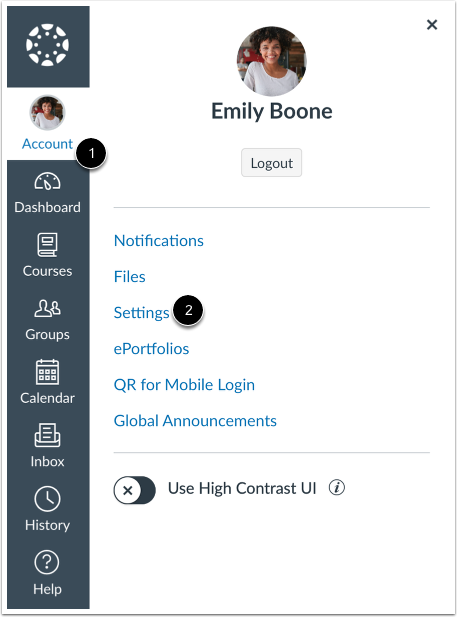
Navigate to Account → Settings in Global Navigation
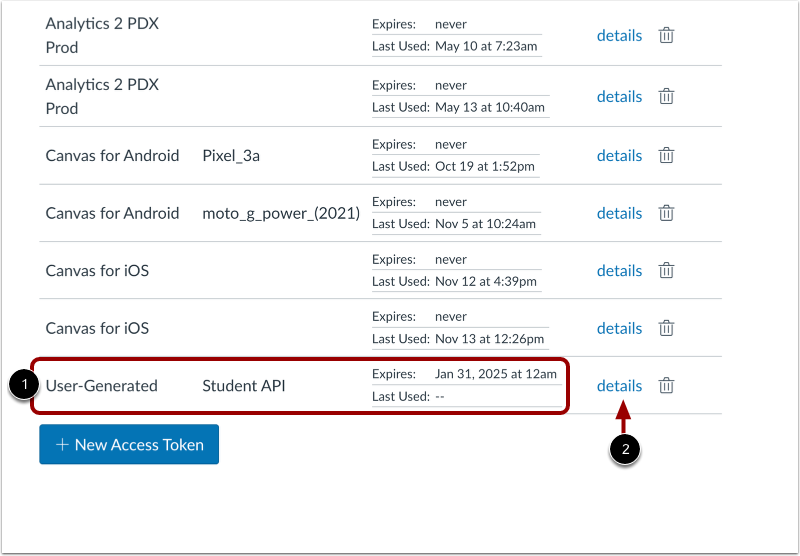
View Existing Tokens
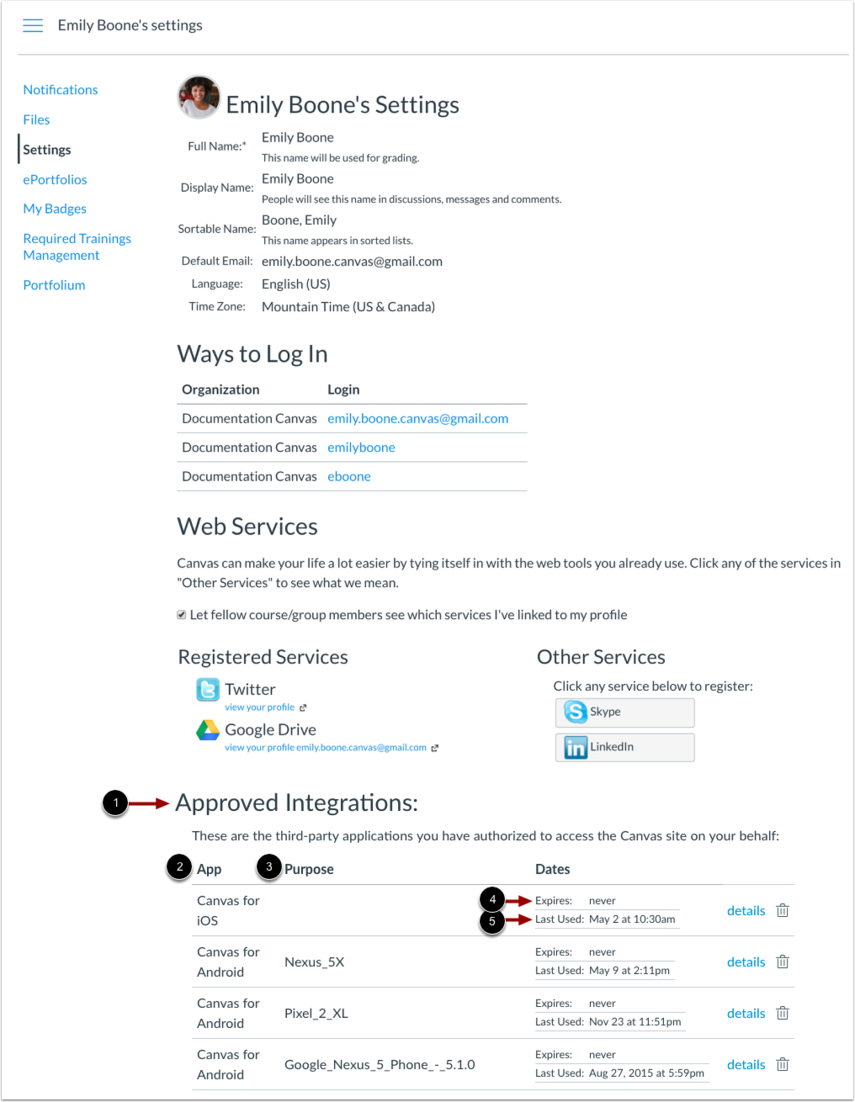
All access tokens appear in Approved Integrations. Each shows:
- Name and purpose
- Expiration date
- Last use date
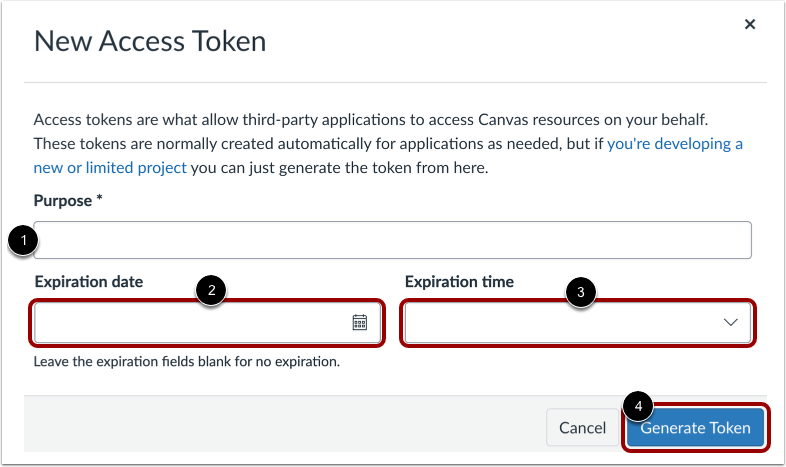
Create New Token
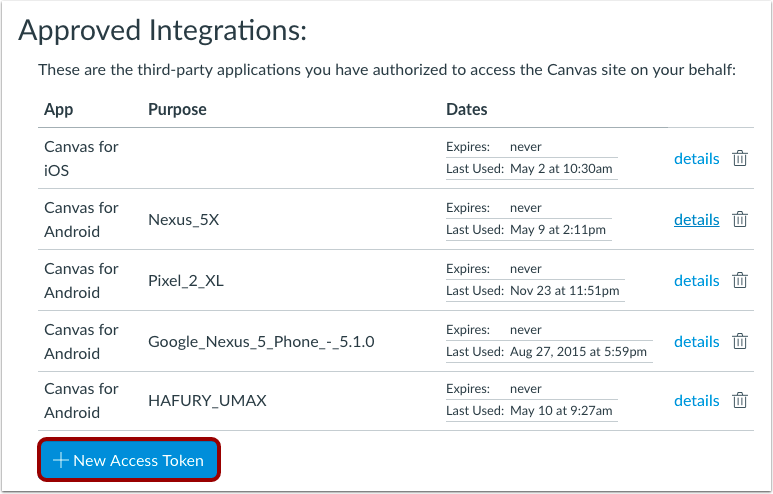
- Click Add New Access Token
- Enter a Purpose description
- Set an Expiration date (optional but recommended)
- Click Generate Token
View Token Details
Click details to reveal your token string
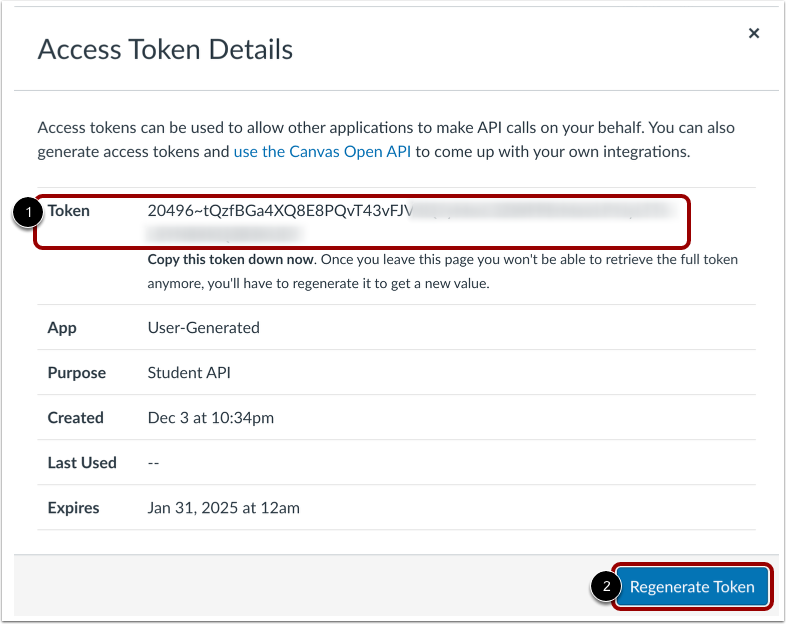
Important: Copy and save this token immediately—you won't be able to view it again. You can regenerate it if needed.
Delete Token
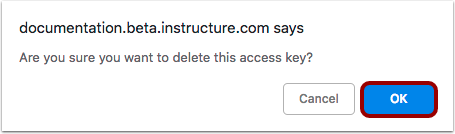
- Click the Delete icon next to the token
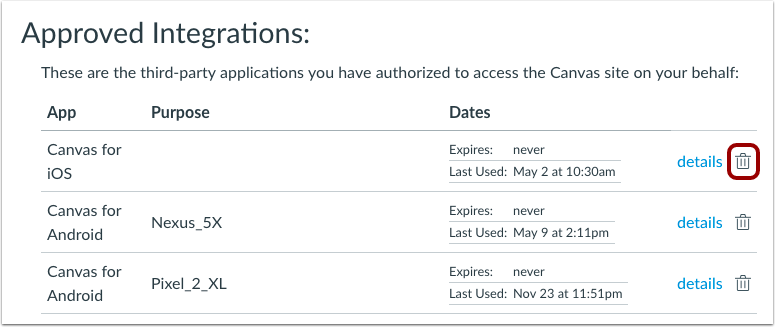
- Confirm deletion